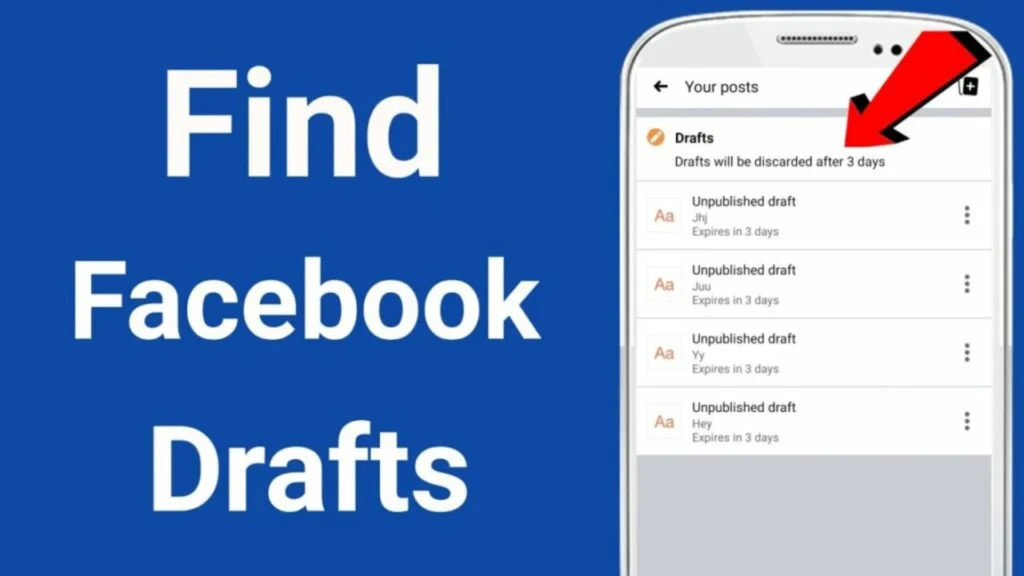
Ever save a Facebook draft and lose it? Personal drafts are only saved on your device and quickly disappear. But Meta saves page drafts online.
This guide shows you exactly where to find saved drafts on your phone or computer for both your profile and your Pages and explains the tools you will need to do so. Plus, we will provide tips on managing them.
What is the difference between Personal Profile vs. Page Drafts?
Facebook handles drafts for your personal profile and business Pages very differently.
- Personal profile drafts are only saved for a short time on the exact phone or tablet you used and not on Facebook’s central servers. If you log out or clear your device’s storage then this draft will disappear after three days.
- Facebook Page drafts are saved securely in a special tool called Meta Business Suite. They won’t disappear like personal drafts until you delete or publish them. And you can access them from your phone or computer.
So the steps to find your draft depend entirely on whether you made it for your personal profile or a Page you run.
How to find Page Drafts on Desktop and Mobile?
If you saved a draft for a Facebook Page then you can find it in the Meta Business Suite which is the content dashboard for Pages on your computer.
Finding Page Drafts on Desktop
- Log in to Facebook and open the specific Page where your draft is saved.
- Click the Meta Business Suite button or go to business.facebook.com.
- Click Posts & Stories in the left menu and select the Drafts tab.
- All your drafts will show up there. Click one to edit it further and then you can either publish it immediately or schedule it for a future post.
Tip: If you manage several Pages then verify the Page name at the top of Meta Business Suite. It helps to ensure you are seeing the right drafts.
Finding Page Drafts on Mobile
If you saved a Page draft on your phone then you will still need to go through the Meta Business Suite app to find it:
- Install the Meta Business Suite app on your mobile device.
- Open it and tap the Content Tab. It looks like a grid and is found at the bottom of your screen.
- Select the Drafts section on the Content screen.
- Open a draft to finish editing or publishing it immediately. You can also schedule it for later.
Tip: If a draft seems to be missing then make sure you have the right Facebook Page selected in the Business Suite app. It lets you easily manage all your Pages.
Finding Personal Profile Drafts on Mobile
Personal profile drafts are much harder to find because Facebook doesn’t save them to a permanent folder. Your only way to get them back is right after you save them.
How to Find Personal Profile Drafts
- Start a new post on your profile and tap Save Draft before you close the post editor.
- Immediately check the Notifications tab. You should instantly see a notification that says “You have a saved draft.”
- Tap this message to reopen the post editor. Here you can edit the post or copy the text to a safe location.
Note: If you close the post editor or delete the notification then the draft is gone forever. Plus, Facebook automatically deletes all personal drafts after about 72 hours. So you need to act fast to save anything meaningful.
Why Do Drafts Disappear?
People often wonder why their personal profile drafts vanish. Unfortunately, the Facebook system for individual posts is unreliable. Here are the main reasons drafts go missing:
- Personal drafts automatically disappear after about 72 hours.
- Personal drafts are only saved on your device. They are deleted if you switch devices or clear memory.
- If you swipe away or miss the draft notification then you will lose your chance to recover it.
- You might be on the wrong Page or account in Meta Business Suite when checking drafts. It’s a common mistake.
Tip: Since personal drafts expire in 72 hours. So make sure to copy the text to a separate notes app if your post is essential.
Tips to Manage Your Drafts
Organising your draft helps prevent panic and confusion. And that is why Social media experts use these simple habits:
- Start every Page draft with a descriptive first line for better organisation. It helps to identify different lists quickly.
- Always use the Meta Business Suite for Page posts and your personal timeline for profile posts to avoid publishing to the wrong audience.
- Set a calendar reminder for any urgent personal post you save. It helps ensure you publish it before Facebook automatically deletes the post.
- Regularly review and delete drafts you no longer need to keep your list clean and make it easier to find active posts.
- Use the scheduling features in Meta Business Suite for future business posts. Scheduled posts are saved permanently and won’t be deleted unlike drafts.
- If you rely on personal drafts then make sure Facebook notifications are on so you see the “saved draft” alert.
Using Meta Business Suite for Page Drafts
It’s a dedicated control centre for all your Page activities. And here are some key tips to use it well:
- All your page content is found under the Content section in the business suite. It makes content tracking easy.
- Page drafts are permanent and don’t expire. You can edit and schedule them at any time.
- You can also bookmark the URL to go straight to your content dashboard. Do this if you check your Page drafts often.
Note: Forget old guides as Meta Business Suite is now the only place to find and schedule your drafts.
Conclusion
Finding Facebook drafts is simple once you know the rules. Use the Meta Business Suite for Page posts to find your dedicated Drafts section. But remember that personal drafts only stay temporarily on your phone.
But Personal profile drafts are tougher. They live only on your phone and auto-delete after 72 hours. Your only chance is to immediately tap the saved draft notification. Use clear titles and set reminders to avoid loss.
FAQs
Q1. Where can I find drafts of my Facebook Page posts?
Go to the Meta Business Suite and look for Posts & Stories then click on the Drafts tab. All your Page drafts will be listed there whether you are on your desktop or phone.
Q2. How do I find a draft on my personal Facebook profile?
Check your Notifications after saving a draft. Tap the Finish your draft alert to open it. Personal drafts are not saved permanently and will vanish automatically after three days.
Q3. Why did my Facebook draft disappear?
Personal drafts disappear if you use a different device or are automatically deleted after 72 hours. But Page drafts are saved permanently in the Meta Business Suite until you publish or delete them yourself.
Q4. Can I recover deleted Facebook drafts?
Personal drafts are deleted when you close the notification or use a different device. They are also automatically deleted after 72 hours.
Q5. Do Page drafts and profile drafts work the same way?
No. Profile drafts are temporary and saved only on your device. Page drafts are saved permanently in the Meta Business Suite until you publish or delete them.
Q6. How can I better manage Facebook drafts?
Use the Meta Business Suite for all your Page content. Give drafts clear titles and try scheduling posts instead of using drafts for anything you need to keep for longer.
Also Read:
How to Pin Location in Google Map
How to Use Instagram Hashtags like a Pro
List of All Facebook Offices in India
How to use Meta Creator Studio for Instagram